---
title: "Introducing IVR Menus"
description: "When a call lands on the wrong desk, gets passed around, and ends up in somebody's voicemail, you have paid for a lead and lost it inside your own business. The new Menu step turns any tracking number into a phone menu, and every option branches into its own call flow."
image: "/assets/images/posts/call-tracker-ivr-menu.jpg"
url: "https://calltracker.io/blog/2026-08-15-introducing-ivr-menus/"
---
You already pay to make the phone ring. When that call lands on the wrong desk, gets passed around, and ends up in somebody's voicemail, you have paid for a lead and lost it inside your own business.
Today we're adding a Menu step to call flows. It turns any tracking number into an IVR menu: press 1 for Service, 2 for Parts, 3 for Sales. You may know it as a phone tree or an auto attendant. They are the same thing, and it takes about a minute to build.
#### What You Can Do With an IVR Menu
- Send callers to the right team on the first try, without paying someone to answer and transfer.
- Advertise one number everywhere and still serve every department behind it.
- Give each option its own handling: ring a mobile, ring three at once, or take a message.
- Set voicemail per department rather than one shared mailbox.
- Keep recording, transcription and campaign attribution on every call, whichever key the caller presses.
#### Add the Step, Then Add the Keys
Open a call flow, press Add Flow Step, and choose Menu. Each option is a digit and a label: 1 and Service, 2 and Parts, 3 and Sales. That is the whole setup, and the Menu step guide walks through it screen by screen.
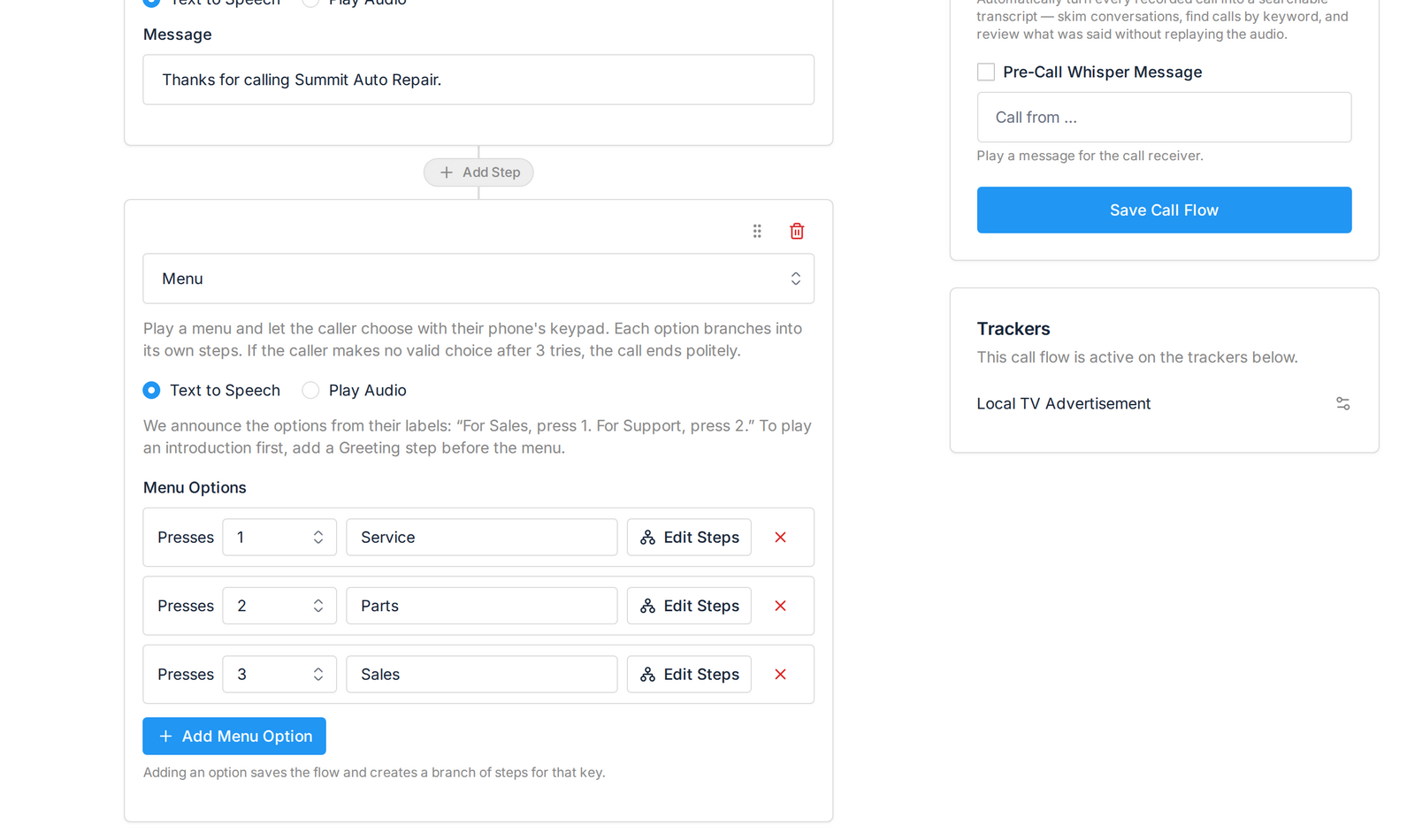
A menu is always the last step in its chain, because everything after it depends on which key the caller pressed. To say something before the options play, put a Greeting step above the menu.
#### Every Option Is Its Own Call Flow
Pressing Edit Steps on an option opens a branch. A branch is an ordinary call flow with its own steps, so an option can do a lot more than forward to a second number.
So Service can ring the workshop, wait twenty seconds, then take a voicemail with its own greeting. Parts can ring a different number and never go to voicemail at all. Sales can ring three mobiles at once and catch whoever is free.
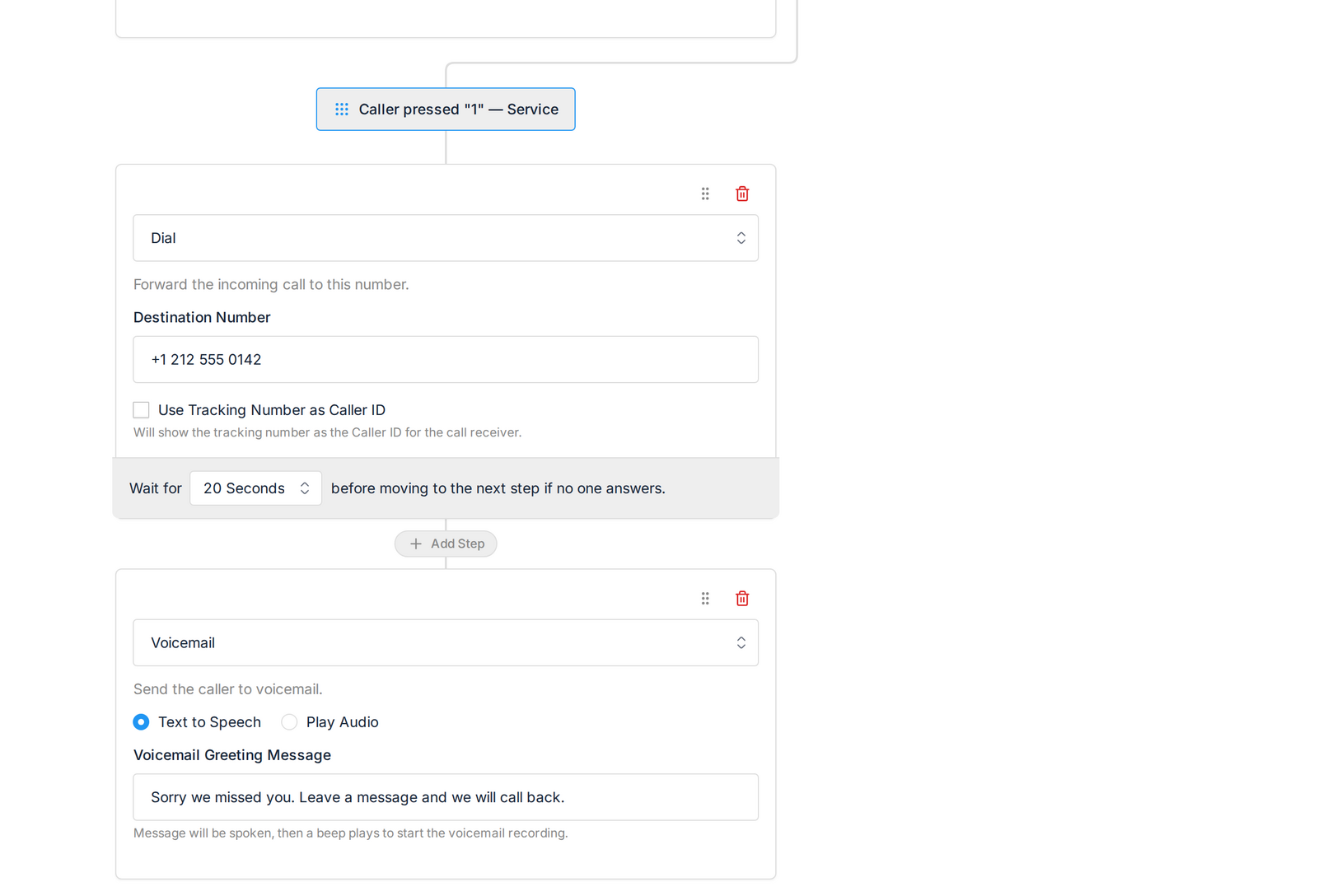
Branches open as sub-flows inside the same builder page, so you are never clicking between screens to find out what a key actually does.
That matters most when your departments behave differently. Service is busy at 8am and needs to reach the workshop. Sales should never go to voicemail. Each option gets its own handling instead of one compromise that suits nobody.
#### The Menu Announces Itself
We build the spoken menu from your option labels. Label them Service, Parts and Sales, and the caller hears "For Service, press 1. For Parts, press 2. For Sales, press 3."
Rename an option and the announcement changes with it. There is no separate script to keep in step, so the menu can never offer a key that routes nowhere. If you would rather use your own recording, switch the step to Play Audio and upload it.
Callers who press nothing, or press a key you have not used, hear the menu again. After three tries the call ends politely rather than sitting in silence.
#### Your Reporting Does Not Change
A menu is part of the call flow, so it never touches attribution. Every call still carries the tracker, campaign, source and keyword that produced it, and still lands in your call analytics the same way it did before.
You set call recording and AI transcription once on the call flow and they apply to every branch, so a call that went to Parts is recorded and transcribed exactly like one that went to Service. The same is true of whisper messages.
#### Where To Find It
Open Call Flows, edit a flow, and press Add Flow Step. Menu is in the list alongside Greeting, Dial, Simulring and Voicemail. It is available now on every plan and there is nothing to switch on.
If you manage clients, menus sit inside each company's own call flows, so they stay separated across multiple companies and carry your branding on white label accounts like everything else.
Full setup steps are in the Menu Step article, and there is more on the IVR menu feature page. Questions are welcome at support@calltracker.io.
Not using Call Tracker yet? Start your 14 day free trial and find out which campaigns make your phone ring, and where those callers actually want to go.